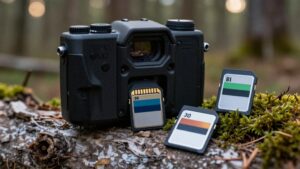
Why Does My Trail Camera Say SD Card Error? Causes and Fixes
Your trail camera may show an SD card error when the card uses exFAT or NTFS, exceeds the camera’s capacity limit, has dirty contacts, or is write-locked.
Back up files, power the camera off, then reseat the supported SD or microSD card and format it in the camera as FAT32.
Check cold-weather battery performance, inspect the lock tab, and install approved firmware.
Test a known-good card before deployment.
The steps below help isolate the exact fault.
Check SD Card Format First
Start by formatting the SD card in the trail camera’s own menu, which creates the file system and folder structure the camera expects.
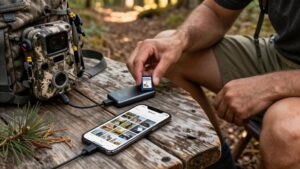
Before you format, copy needed photos to a computer using a card reader; formatting usually erases every file. Confirm that the card’s type and capacity match your camera’s specifications, because unsupported media can produce the same error. If you’ve used the card in another device, reformat it in the camera rather than reusing its existing setup.
Then power the camera off before removing or reinserting the card. Keep its batteries secure during setup and during image writes; an interruption can corrupt the card’s directory and bring the error back. Afterward, take a test photo and verify the camera saves it correctly.
FAT32 Compatibility Prevents Read Errors
Many trail cameras can read only FAT32-formatted SD cards, so a card using exFAT or NTFS may trigger an “SD Card Error” even when the card itself works normally. Back up any images, then use the camera’s Format or Erase menu to create the filesystem it expects. This removes unsupported structures and is the most reliable first test. If the error clears after formatting, incompatibility caused it.
If you format on a computer, select FAT32 explicitly, erase all existing partitions, and leave one primary FAT32 partition. Also verify the cluster size: 32 KB is commonly suitable for SD/FAT32 cards, while unusual allocation settings can confuse picky camera firmware. Then reinsert it and confirm the camera recognizes available storage before using it afield for testing.
Cold Weather Card Failures
Freezing conditions can trigger an “SD Card Error” even when the card works normally indoors: cold lowers battery voltage and slows flash-memory read/write operations, increasing the likelihood of camera timeouts. If the error appears only outdoors, bring the camera indoors and let it reach room temperature before removing the card. This limits condensation, which can wet contacts, corrupt the file system, or make the card unreadable after temperature changes.
Then reseat it firmly, back up readable files, and format it in the camera menu. Confirm that the card meets your camera’s speed class; older, low-capacity cards can become too slow in cold conditions. For winter use, install fresh batteries, choose an extended-temperature or industrial-rated card, and use an insulated housing to reduce voltage write timeouts.
Standard Versus MicroSD Cards
Verify whether your trail camera requires a standard SD card or a microSD card, as their different sizes and connectors can cause an immediate card error. Use a microSD adapter only if your camera supports it, and never force an incompatible card into the slot.
Then confirm the manual’s capacity and speed-class requirements before choosing a replacement card.
Physical Size Differences
Physical fit matters: a standard SD card and a microSD card use different shapes, and your trail camera may accept only one. Check your camera’s manual and inspect the card slot before testing. A full-size SD card won’t fit a microSD slot, while a microSD card is too small for a standard SD slot. Insert the supported card straight, with its label oriented as the camera indicates. It should enter completely and sit flush, without a visible gap or force. Remove it and inspect the contacts and casing for dirt, bends, cracks, or wear. Confirm that the card’s SD, SDHC, or SDXC format and capacity meet the camera’s specifications. A correct physical fit alone doesn’t ensure recognition; use the required card type exactly.
Adapter Compatibility Issues
Even when a microSD card fits through an SD adapter, your trail camera may not reliably support that combination. Confirm your camera’s exact slot type and supported capacity; some models require a standard SD card despite accepting an adapter physically.
Use only a high-quality adapter rated for the camera’s format and speed class. Cheap adapters can have weak contacts or incorrect thickness, producing intermittent read failures and an SD Card Error. Also verify that the adapter and card support the required SDHC or SDXC standard; SDHC reaches 32GB, while SDXC handles larger capacities. If errors continue, test a known-good adapter or install the correct card type directly. Back up photos, then format the card in the camera after changing combinations. This resets formatting.
Choosing The Right Card
Your trail camera’s card slot determines whether you need a standard SD card or a microSD card with an adapter. Check the manual: it lists supported SD, SDHC, or SDXC formats and the maximum capacity. A card that works in another device can trigger an SD Card Error if its format or capacity exceeds your camera’s limits.
If your camera accepts microSD, use a dependable microSD-to-SD adapter that fits firmly. Loose or low-quality adapters create contact failures during reads and writes. Choose a high-endurance card, preferably one designed for dash cams or surveillance, because repeated recording wears ordinary cards faster. Select at least a U1/U3 speed rating, and use higher ratings when your camera supports them. Slow cards may fail during motion-triggered video recording.
Firmware Affects Card Recognition
Your camera’s firmware determines which SD card formats, capacities, and models it can recognize reliably. If errors begin after an update or with a newer card, install the latest manufacturer-approved firmware and format the card in the camera. If recognition still fails, reflash the firmware as instructed and test a known-compatible card.
Firmware Version Compatibility
Firmware can determine whether your trail camera recognizes an SD card at all. Check the manufacturer’s compatibility chart for your exact camera model and installed firmware version, not merely the camera series. Older firmware may not identify newer SD, SDHC, or SDXC formats correctly. It may also reject a card that works normally in a computer because it expects a specific capacity range, speed class, file system, or folder structure.
Match the card to documented requirements: some cameras accept SDHC only through 32GB, while others require SDXC above that limit. Verify the specified speed rating, often Class 10 or U3. If the error began after a firmware change, isolate the cause: test this card in another trail camera, then test a known-supported card. Review release notes for SD recognition fixes.
Updating Camera Firmware
Once you’ve confirmed that the card meets the camera’s documented requirements, check for an updated firmware version for your exact model on the manufacturer’s website. Verify the download’s correct model number and follow the maker’s official installation instructions exactly. Back up card files before beginning, then use fresh batteries. Don’t remove power, open the battery compartment, or interrupt the update; an incomplete installation can create persistent card errors.
New firmware can expand SDHC or SDXC support, such as moving beyond older 4 to 32 GB limits, and it may improve communication with newer, faster, or higher-capacity card controllers. When installation finishes, turn the camera off, remove and reinsert its battery, then power it on. This power cycle reloads card-recognition routines at boot and checks card recognition.
Recognition Issues After Updates
Even a successful firmware update can change how the camera identifies SD cards, including its file-system, formatting, or partition requirements. A card that worked before may now show an SD Card Error. First, use the camera’s Format option; don’t format it on a computer.
| Check | Action |
|---|---|
| Card type | Confirm SD, SDHC, or SDXC support. |
| Capacity | Match the specified range. |
| Test card | Try a known-good compatible card. |
If recognition still fails, verify that the update didn’t impose a different capacity limit or card class. A supported test card isolates a firmware recognition change from a damaged card. Then check for a newer release that fixes SD-detection bugs. Contact support with your camera model, installed firmware version, card type, capacity, and formatting results for targeted help.
Test Cards Before Remote Deployment
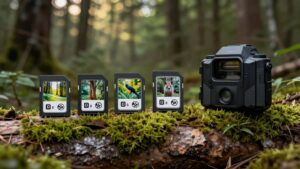
Before placing a trail camera in a remote location, test the exact SD card model and capacity in that camera. Format the card through the camera’s menu so its file system matches the device’s firmware expectations. Then run a 30 to 60-minute motion-trigger capture test. Confirm that the camera saves files, replays them, and never displays an SD Card Error.
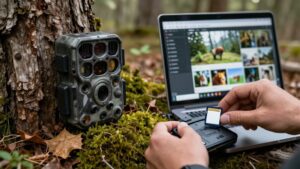
Next, inspect the card with a computer and reader. It should report its full size, open normally, and contain readable photos or video rather than corrupted thumbnails. For a stronger check, capture several hundred images, then power-cycle the camera and review the files again. Carry a known-good spare card. If one card repeatedly fails while the spare works, you’ve isolated the card as the likely fault.
Verify Camera Capacity Limits
Check your trail camera’s manual for its maximum supported SD card capacity and card type. Cards above the listed limit, often 32GB or 64GB, and sometimes 128GB on newer models, can trigger an “SD Card Error.” Confirm whether your camera accepts SD, SDHC, or SDXC media, because SDXC support may require compatible firmware. Next, verify the required file system. Older cameras commonly read FAT32, while exFAT- or NTFS-formatted cards may be rejected.
After you confirm compatibility, use the camera’s menu to reformat the card, especially if you used it in another device. Then insert the card, power on the camera, and make a short test recording. If it works, capacity, format type, or file-system mismatch likely caused the error rather than card corruption in this case.
Dirty Card Contacts Cause Errors
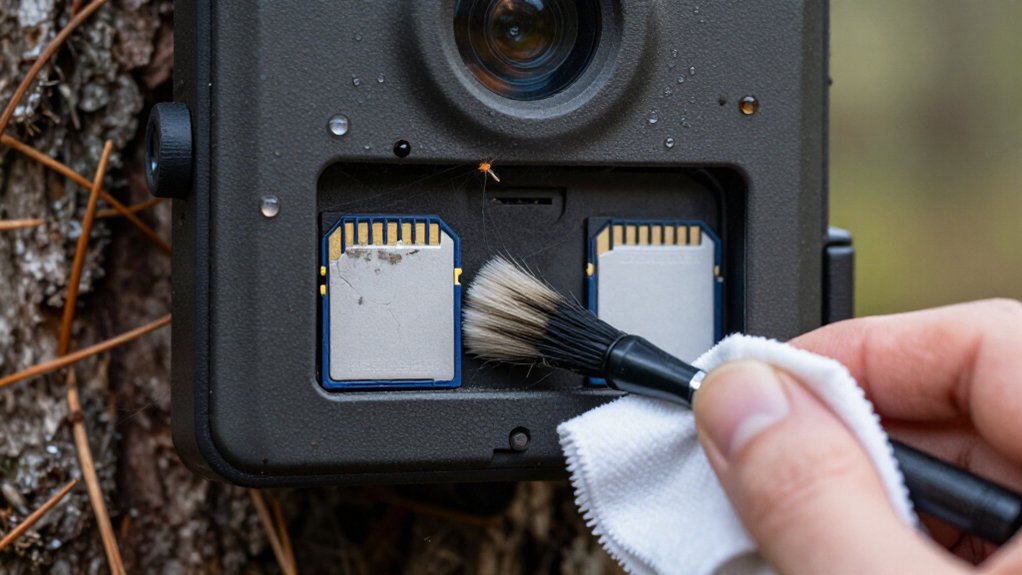
Inspect the SD card’s gold contact pads for fingerprints, dust, oil, or oxidation, as any of these can interrupt the electrical connection and trigger an “SD Card Error.” Remove the card, wipe its contacts gently with a clean, dry microfiber cloth, and reinsert it fully so it seats correctly.
Outdoor use can leave residue that raises resistance and disrupts read/write signals. Work methodically:
- Power off the camera before removing the card.
- Use a contact-cleaner wipe only when dry cloth cleaning fails; never use water or abrasives.
- Test the card in another device if the error remains. A failed test suggests a worn or failing card, while detection points to camera-slot pins. Don’t force insertion, because bent pins or scratched pads may permanently stop detection.
Inspect the Card’s Write-Protect Switch
If clean contacts don’t resolve the error, examine the SD card’s small side write-protect tab and set it to the open position. A locked tab lets the camera detect the card but prevents it from writing photos or videos, which can produce an SD Card Error or failed recordings. Power off the trail camera, remove the card, and slide the switch to release.
Then reinsert the card until it is fully seated; partial insertion can create similar write-protect symptoms. Check the correct edge for your card type: full-size SD cards have the sliding tab on their side, while microSD cards may use a differently located tab, often marked Lock. Restart the camera and capture a photo or video. If recording succeeds, the switch caused it.
Conclusion
Start by formatting the card as FAT32, then confirm its capacity matches your camera’s limit. Use a standard SD card or a compatible microSD adapter, and test it in the camera before placing it remotely.
Inspect and clean the contacts, release the write-protect switch, and update camera firmware. If errors appear only in freezing conditions, try a quality card rated for cold use. Replace any card that repeatedly fails verification during initial setup or testing.